Practical Guides for Restaurant Success
Learn the exact steps to build your menu, invite your team, print high-quality QR codes, and connect custom domains.
How to log in to Venue Admin
Prerequisites
A registered TableGreet venue admin account.
Step-by-step setup instructions
Navigate to the sign-in portal at https://app.tablegreet.com/login and enter your registered email address and account password. Use the eye icon toggle to reveal or mask characters.
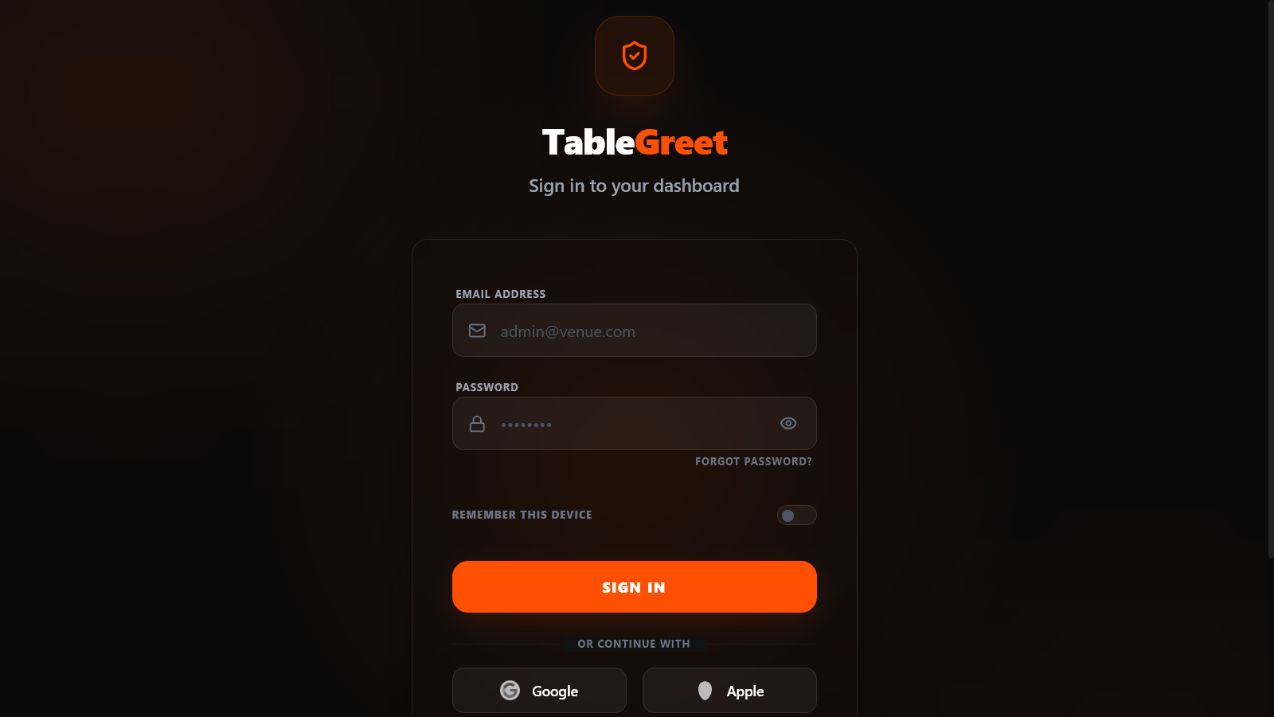
Optionally toggle "Remember this device" to maintain session persistence on trusted devices.
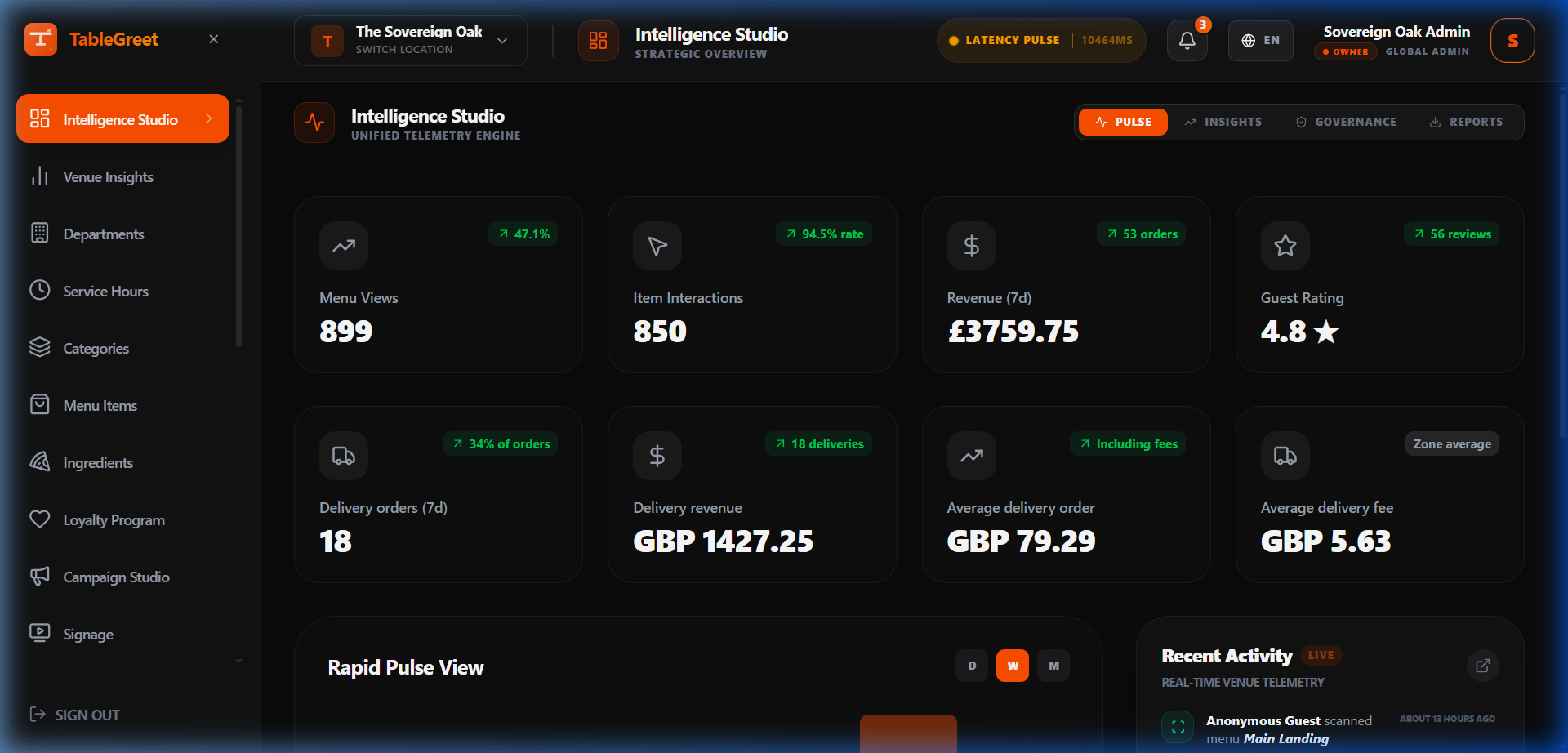
Click "SIGN IN" to authenticate. Upon successful verification, you will be redirected to the Venue Admin Dashboard.
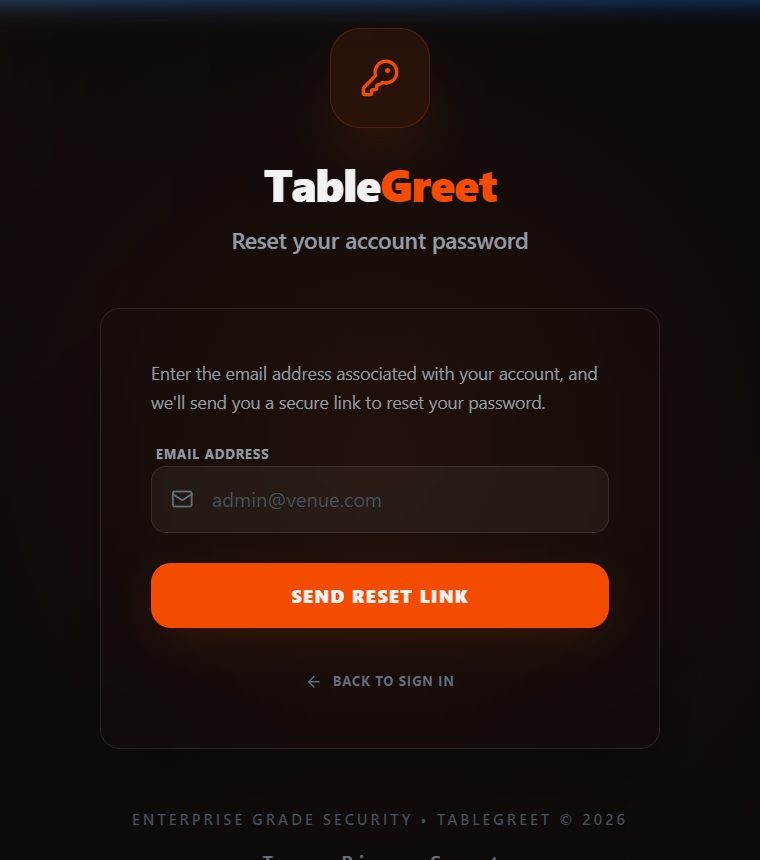
If you forget your password, click "FORGOT PASSWORD?" to request a reset link via email.
Pro Tip
If your account email is not yet confirmed, you will be prompted to complete email verification before accessing venue settings.
Still need help?
Connect with our technical support team to resolve complex DNS connections, SSO configuration, or layout adjustments.