Practical Guides for Restaurant Success
Learn the exact steps to build your menu, invite your team, print high-quality QR codes, and connect custom domains.
Configure languages
Prerequisites
Manager role level or higher.
Step-by-step setup instructions
Open "Language Settings" in the admin dashboard.
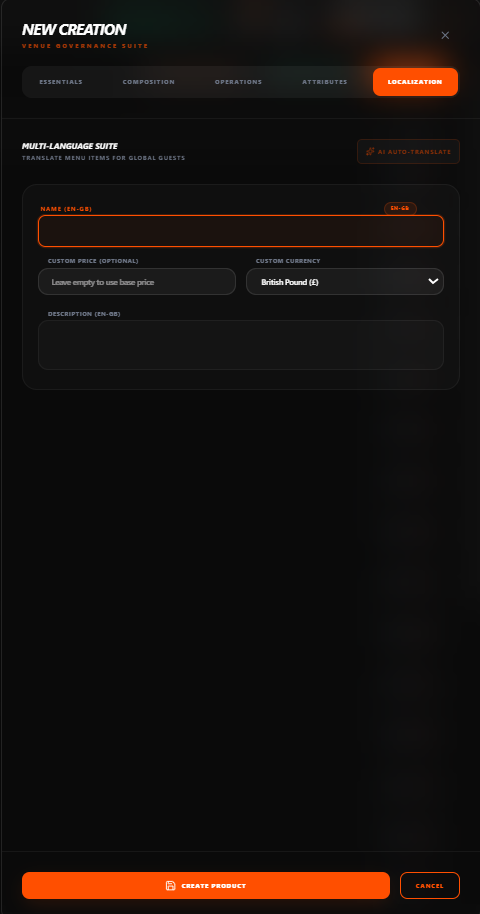
Add your target languages (e.g., English, Arabic, French) to the active languages list.
Select the primary default language that guests see first based on your venue's location and main customer profile.
Go to the "Menu Builder" and use the language flags next to item details to input translated text and select right-to-left layout alignments.
Pro Tip
TableGreet automatically detects guest phone browser languages. Translating your menu into Arabic and English covers the vast majority of diners in Saudi Arabia.
Still need help?
Connect with our technical support team to resolve complex DNS connections, SSO configuration, or layout adjustments.